The record of chemical industry projects, in ChatGPT, Claude or Copilot
“Write me a brief on BASF's investments in Antwerp for Thursday's meeting.”
“Which of our open opportunities have a project that moved this quarter?”
“Check the accounts in this spreadsheet: which are building something new?”
“Draft an email to our CRM contacts at Spain's new hydrogen project owners.”
“Compare Europe's ammonia projects with the market report I attached.”
“Find the plants that could use our CO₂ capture units, and map them.”
“Every Monday, post what moved in my saved searches to our team channel.”
“Add the new projects from my saved search to our CRM as leads.”
“Which contractors build the ammonia projects in Europe?”
Works with ChatGPT, Claude, Copilot and any other assistant that supports MCP.
The chemXplore connector gives your AI assistant our record of chemical industry projects, plants, companies and news. The assistant looks things up in it, combines what it finds with your documents, your CRM and the web, and links every project, plant and company it names to its record.
The record becomes part of how you already work, and the assistant turns it into what you need next. Some examples:
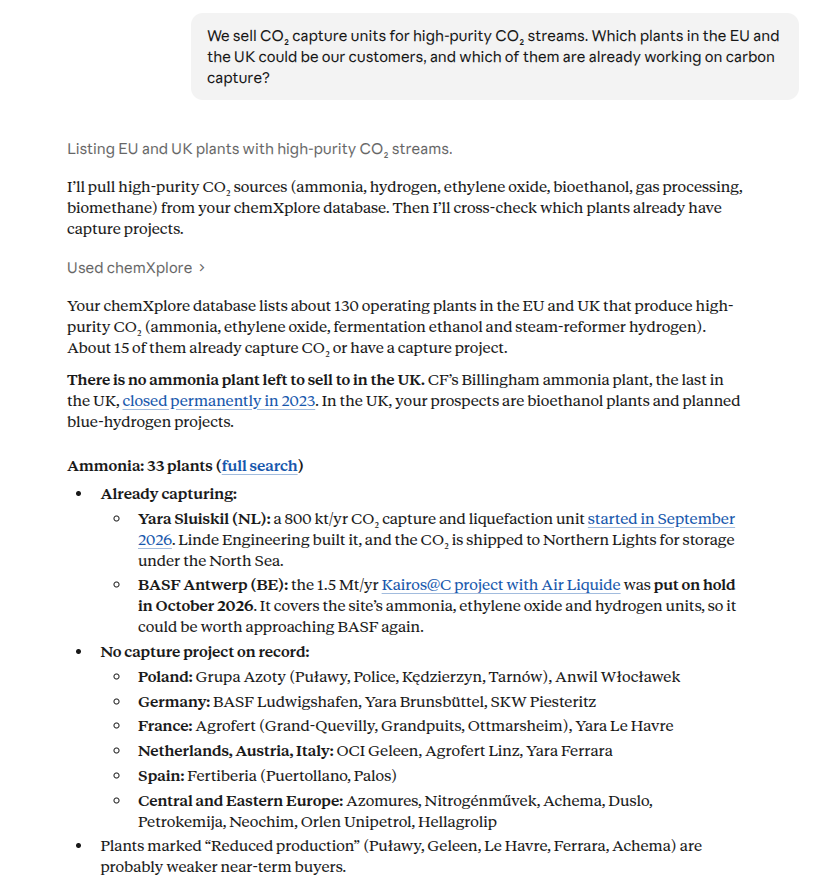
“Which plants in the EU could use our CO₂ capture units, and which are already working on capture?”
The assistant works out which plants fit, finds them in chemXplore and checks which ones have a project under way. The worked example below asks this question.
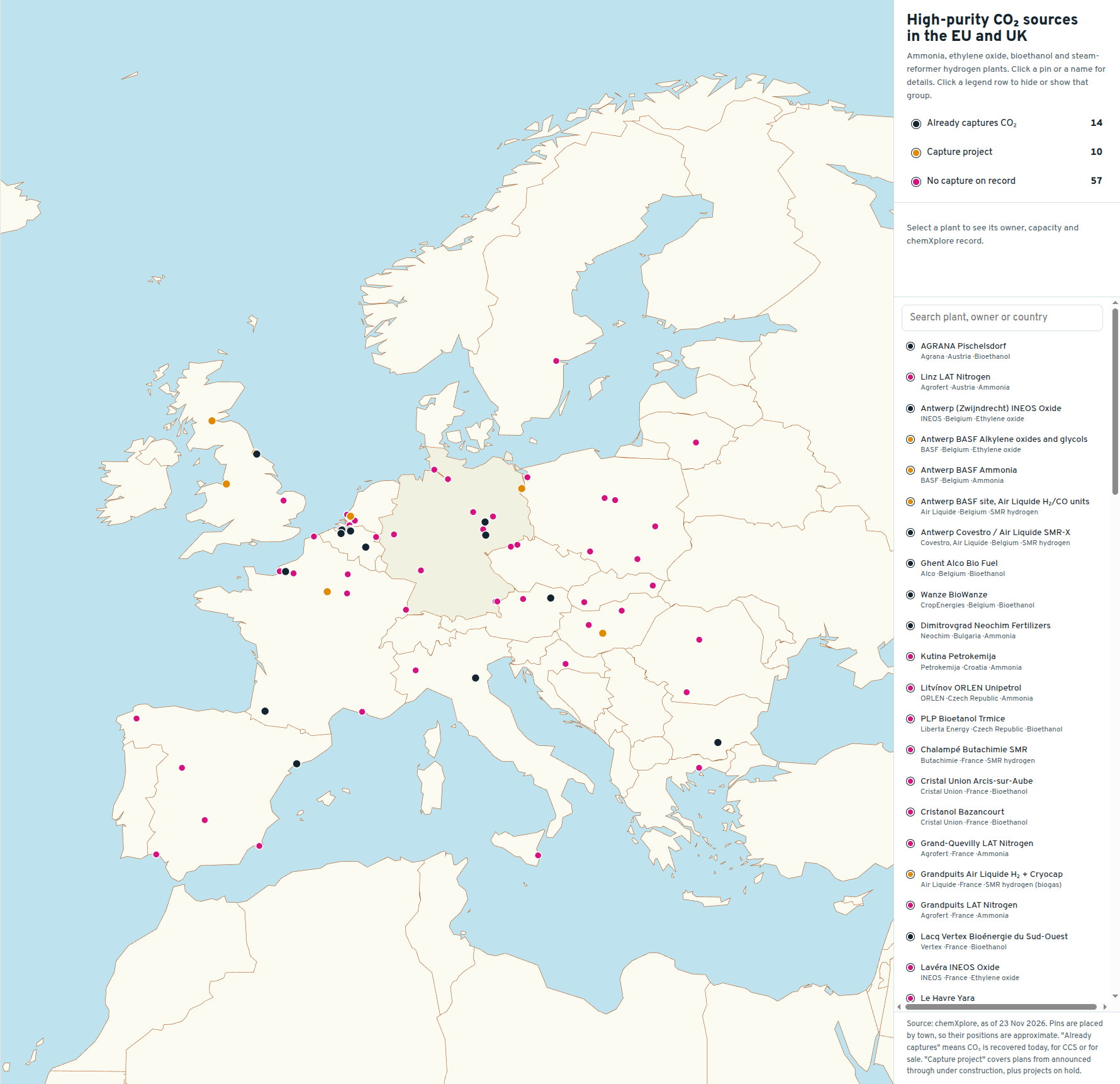
“Put these plants on a map, coloured by status.”
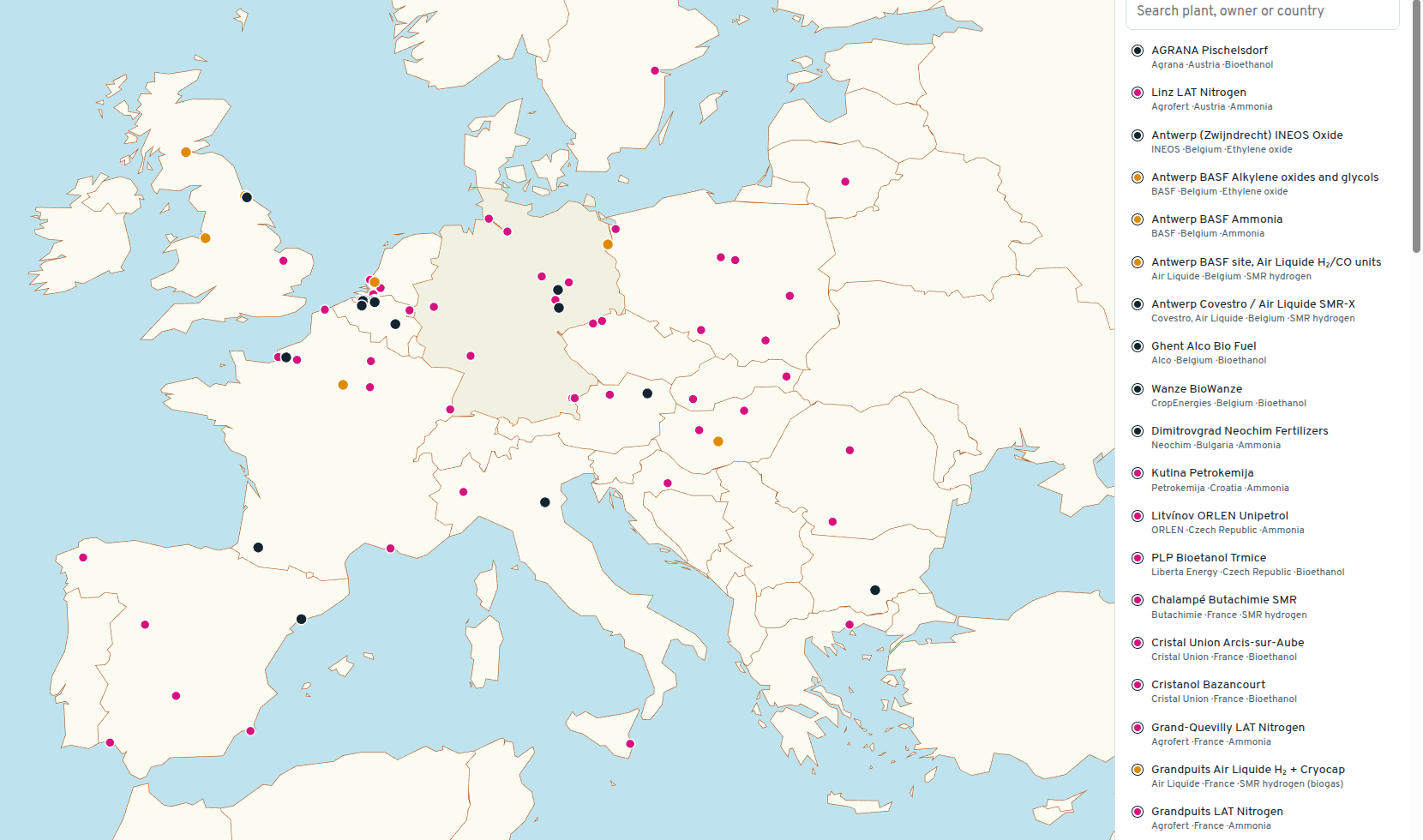
The assistant draws the map from what it found, with a link to each plant in chemXplore. There is one in the worked example below.
“Which of our open opportunities are at companies with a project that moved this quarter?”
If your CRM has a connector of its own, add it next to chemXplore and the assistant uses both. Or paste a list of accounts into the chat.
“Next week I meet the head of procurement at BASF Antwerp. What is the site investing in, and what did we agree in our last call?”
The assistant takes the site's projects and news from chemXplore and your call notes from your CRM or your documents, and puts them in one brief.
“What changed this month at the companies on my list?”
The assistant reaches the lists and saved searches in your chemXplore account, and the news and milestones behind them.
“Every Monday, write me a brief of what moved in my saved searches.”
With a personal key, an agent you build yourself can use chemXplore too, on a schedule or as part of a larger task.
“We sell CO₂ capture units for high-purity CO₂ streams. Which plants in the EU and the UK could be our customers, and which of them are already working on carbon capture?”
Asked in two new chats in Claude, one with the connector and one without.
| What | Without chemXplore | With the chemXplore connector |
|---|---|---|
| Answered in | 4 min 35 s | 1 min 28 s |
| Plants in the answer | 45, five of them marked “not checked” | About 130, grouped by process |
| Links to | News articles and company sites | The record of each plant and project: owners, status, capacity and dated milestones |
With the connector, Claude first works out which processes give off nearly pure CO₂, then finds every plant of those kinds that we follow. The projects show which of them are already working on capture and how far each has got. Each group links to the search behind it, to save in chemXplore. Web search was on in both chats: there is nothing to switch on or off.
“Put these plants on a map of Europe. Colour them by whether they already capture CO₂, have a capture project, or neither, and show the owner and the chemXplore link when I click one.”
In the chat with the connector, Claude drew the plants it had found, coloured by capture status, with each plant's owner and its record behind every pin.
On its own, your assistant answers from what it learnt in training and what it finds on the web. What it learnt is out of date, and searching the web is slow work that still leaves gaps.
We keep the record with the help of agents. Every day they read new sources, take out what each one says about a project and propose a change; where accuracy matters, a person decides. Your assistant gets the result, without having to do that work itself.
The connector works in any assistant or agent that supports MCP, the Model Context Protocol. Here is how to connect it:
Add chemXplore as a connector, using the address on your account page, and sign in with your chemXplore account when the assistant asks. There is nothing to install.
Through an agent in Copilot Studio, which your IT department may have to set up. Available on request: contact us and we will set it up with you.
For an agent you build yourself: create a personal key on your account page and give it to the agent.
An add-on to the yearly chemXplore subscription. Add it at checkout, or later from your account.
Need downloads to Excel, or access for several people in your organisation? Contact us. What chemXplore holds
